
What an evaluation looks at
- Your pacing, effort, heart rate, intervals, and elevation.
- Your earlier runs on the same route, and similar sessions.
- Your reps against the workout you planned.
- Your goal, your load, and your recovery.
- What you said about how it felt.
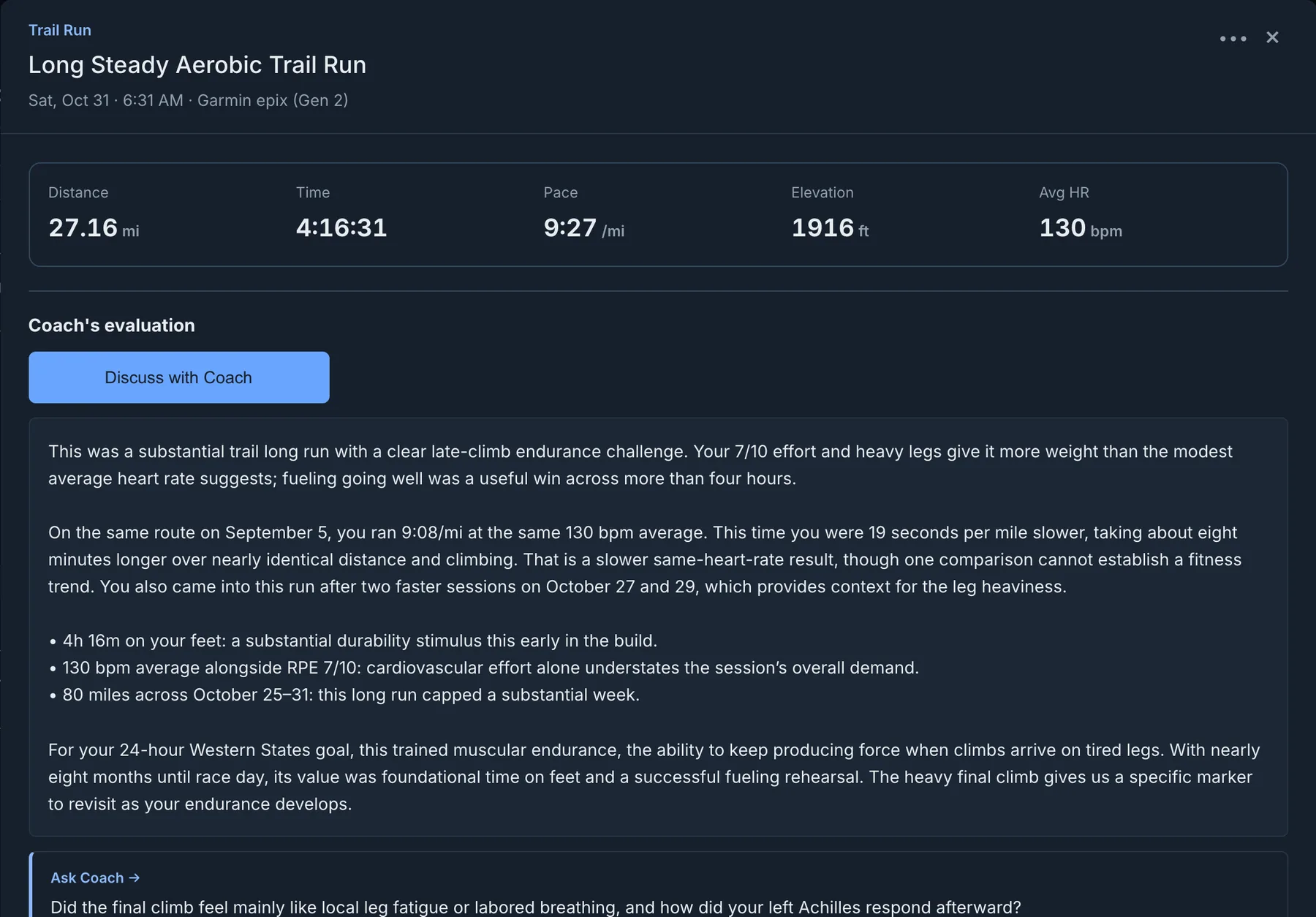
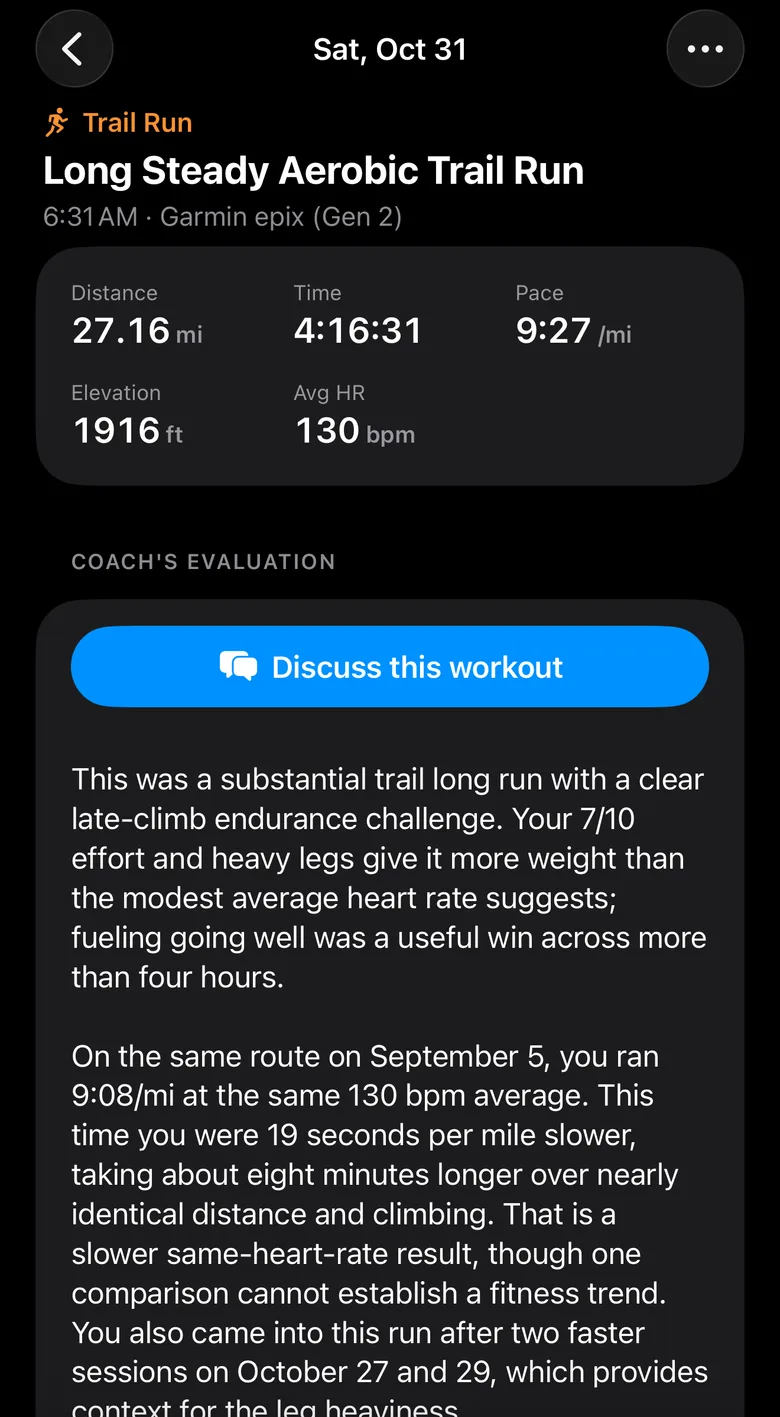
Tell your coach how it felt
Your coach uses this in the evaluation and in later conversations. If you rate a workout on your Garmin watch, the rating comes in by itself.
If a workout felt very hard, your coach follows up and checks your next planned workout.
- Open the workout.
- Rate your effort and how you felt.
- Add a note in your own words.
Talk it through
Select Discuss on a workout. Your coach opens a conversation about that workout, so you can ask what it means or change what comes next.
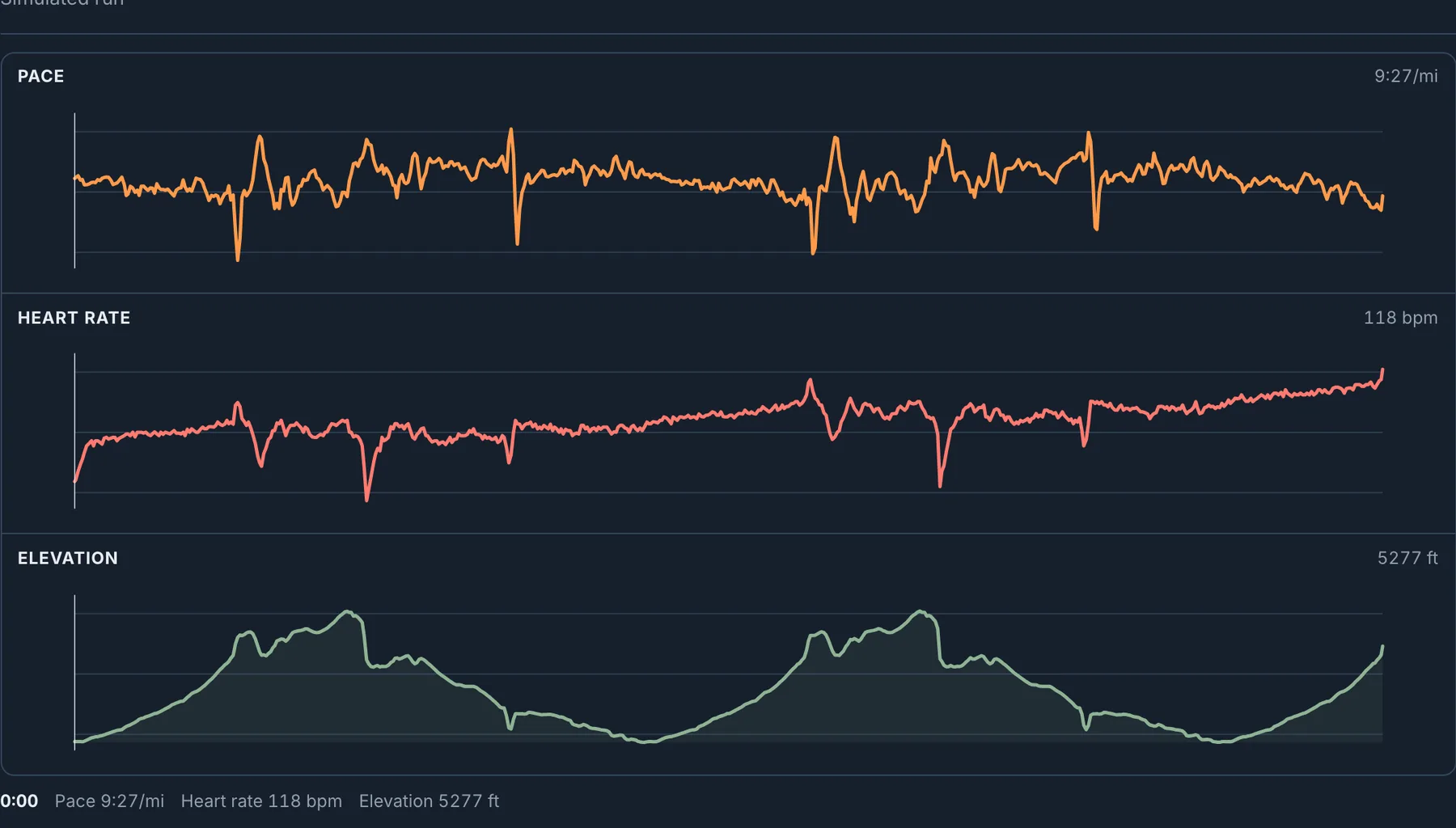
A workout with a watch file also shows its route, charts, and Time in Zones.
Read the analysis
Under the evaluation, Workout analysis shows what Train Ultra measured, each with one line from your coach.
- Plan vs actual: when the workout followed a planned workout, each step you planned beside what you did.
- Reps: the pace and heart rate of each rep, and how they changed from the first rep to the last.
- Splits: for a steady run, each mile or kilometer with its effort.
- Heart rate drift, the hardest climb, and how you finished.
Change your evaluations
To get a new evaluation for one workout, open the workout and open the More menu.
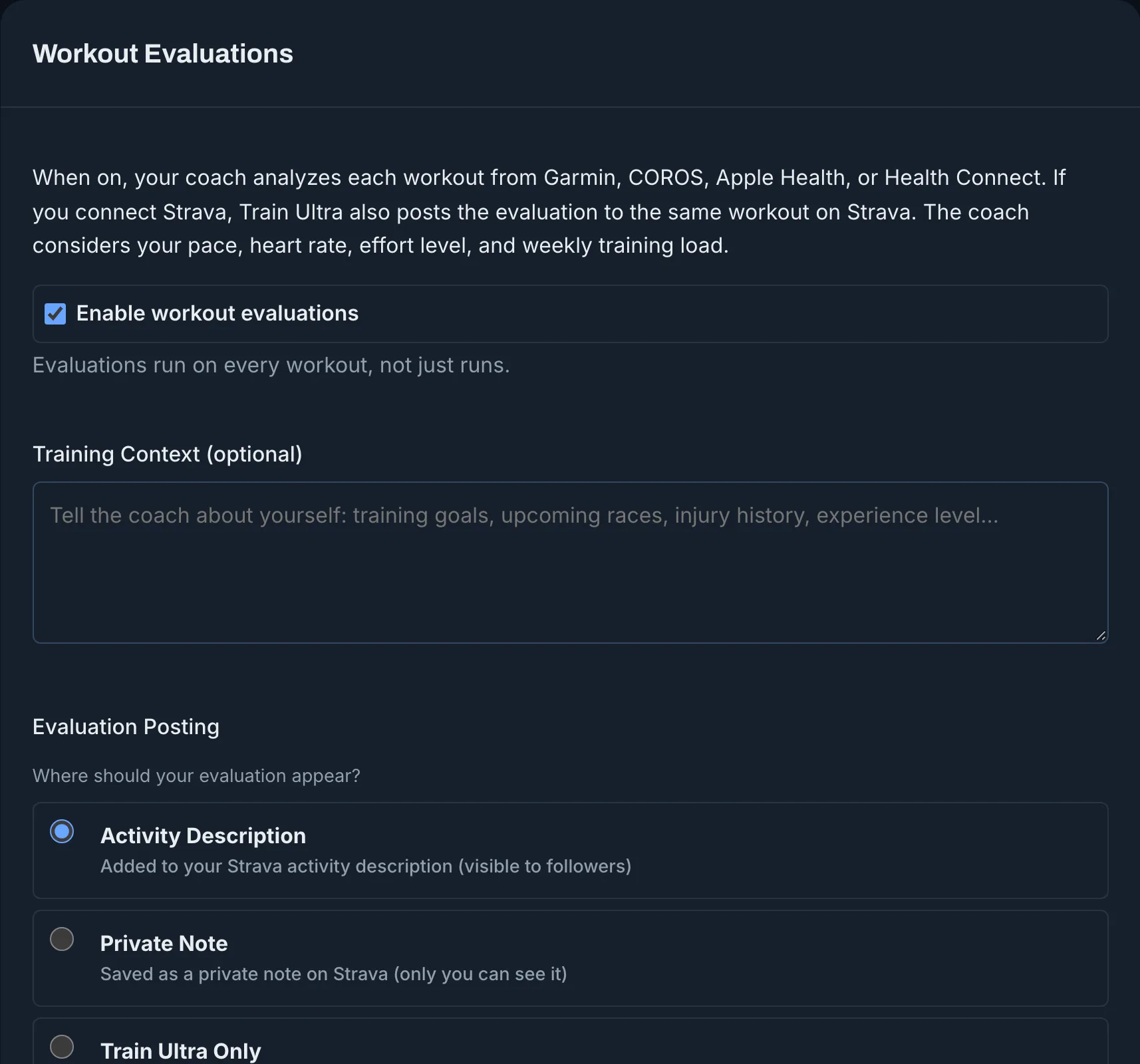
- Open Settings, then Workout Evaluations.
- Turn evaluations on or off.
- Add Training Context, such as your injuries or the language you want.
- If you connect Strava, choose where an evaluation goes: the activity description, a private note, or Train Ultra only.
Who can use it
Evaluations are free. With Pro or a trial, they also measure each workout against your goals.